How to use this app
A full run-through of a real cornhole tournament — from typing in names to putting the live bracket on the TV.
Quick start
1
Name it
Hit Start a tournament, pick cornhole, golf or one of your saved games, and give it a name.
2
Get the players in
Text out the sign-up link ahead of time, or paste the whole list in at once when everyone shows up.
3
Start scoring
Tap Report score after each game. Everyone watching sees it the second you confirm.
Collect sign-ups before the party
Text one link out the day before and the names are already in the app when everyone arrives. No accounts, no app to install — players just type their name.
Step 1
Open sign-ups and text the link
On the setup wizard, press Open sign-ups now at any point — with the name boxes empty, or after you've already typed a few people in. The tournament is created immediately and you get a Pre-registration panel.
- Copy link or Share — text it straight from your phone.
- Download QR — a PNG you can print and tape to the cooler.
- Remove anyone with the trash icon if a name comes in wrong.
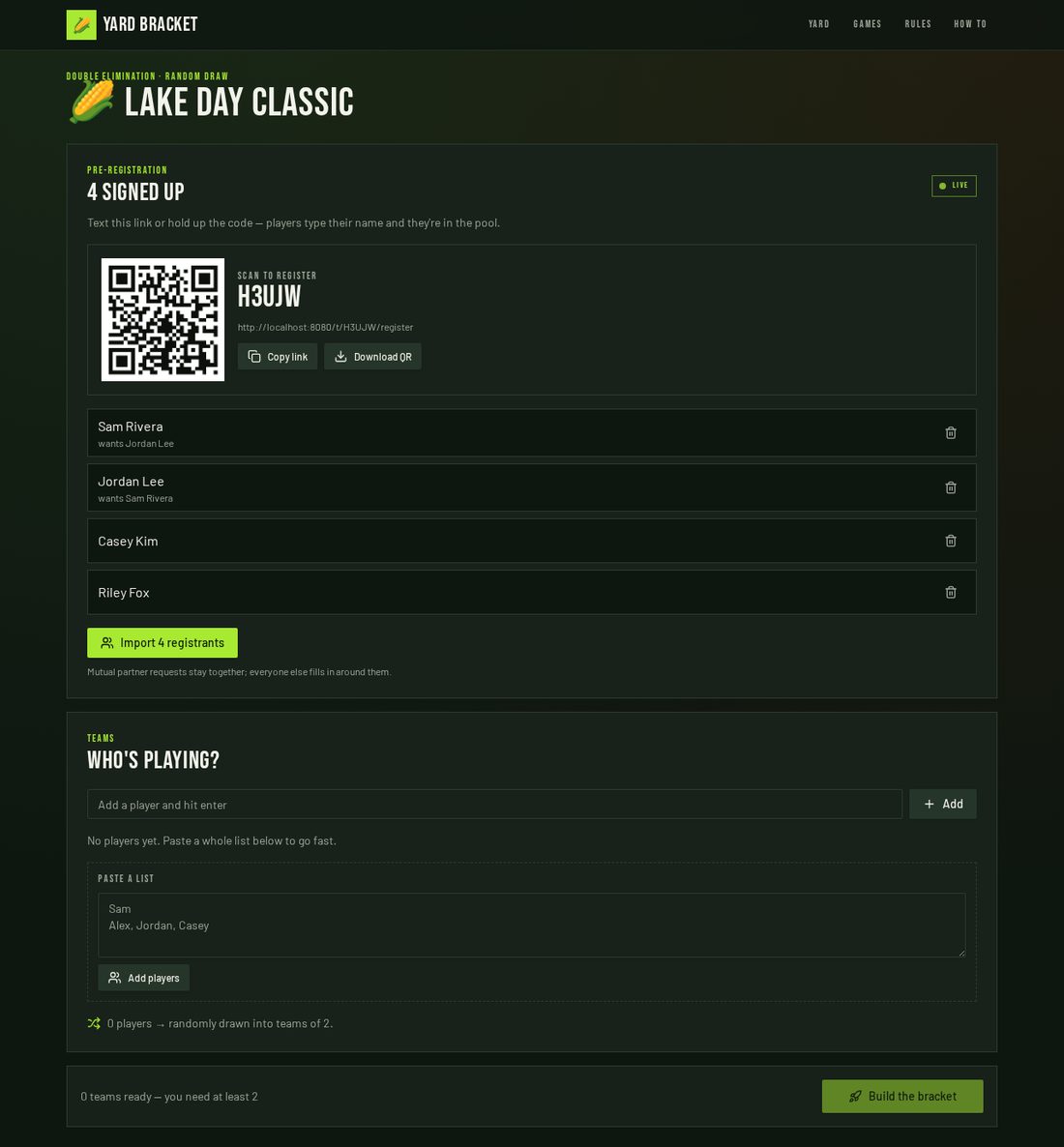
Sign-ups land here live — no refresh needed. Step 2
What players see
One screen, no scrolling: their name, an optional phone number so you can reach them, and — for team games — who they'd like to play with. Two people who name each other get paired automatically.
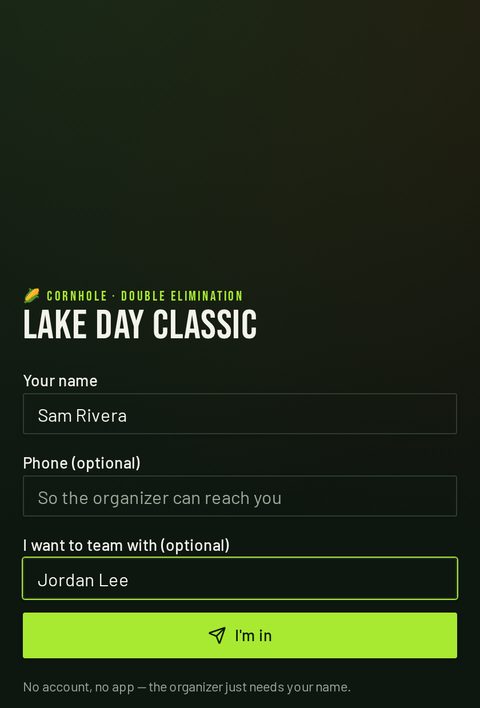
The sign-up page, opened from a text. 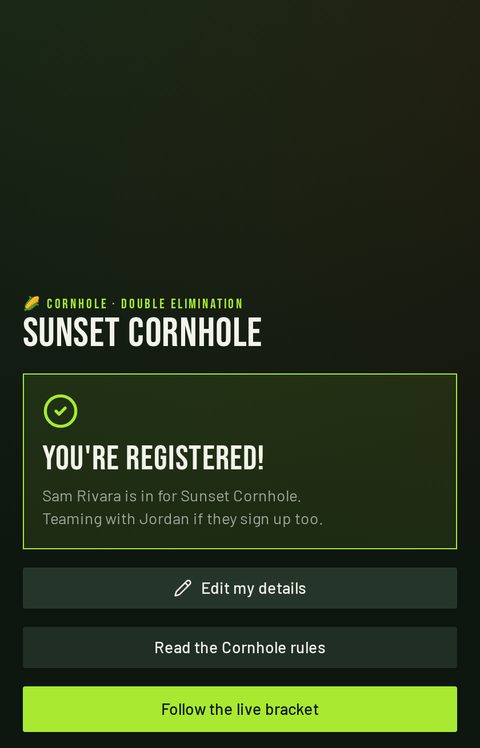
Confirmed, with the rules and a follow-live link. Step 3
Players can fix their own details
Typo in a name, or a partner switch? While the tournament is still in setup, a player reopens the same registration link on the phone they signed up with and taps Edit my details. They can change their name, phone and partner preference, then press Save changes — your sign-up list updates within seconds, no re-registering and no duplicate entries.
Editing is tied to the device that signed up, so nobody can rewrite somebody else's entry. Once you build the bracket, sign-ups close and edits go through you instead — rename the team from the dashboard.
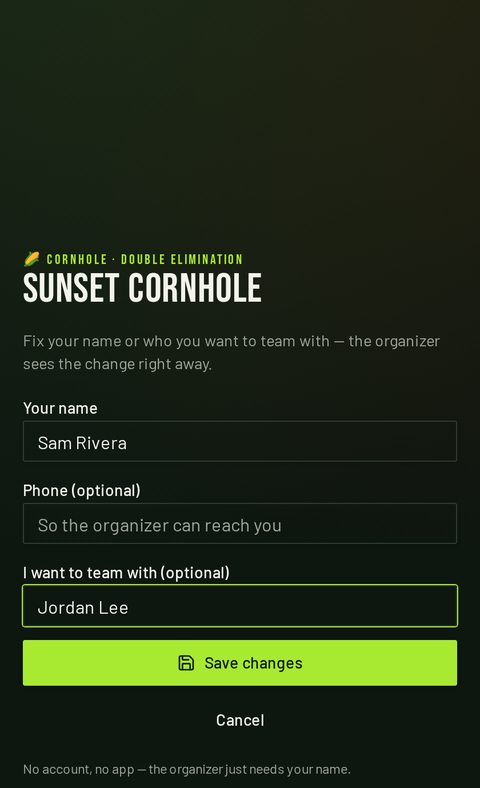
Same link, same phone — Edit my details reopens their entry. Step 4
Import the pool and build the bracket
Press Import registrants. Mutual partner requests stay together and everyone else fills in around them using your pairing mode. Edit the list like any manual entry, then press Preview pairings to check the teams and press Create the bracket.
Late sign-ups keep arriving on the Sign-ups tab and are flagged as new — import again, or add them with Add team once play has started.
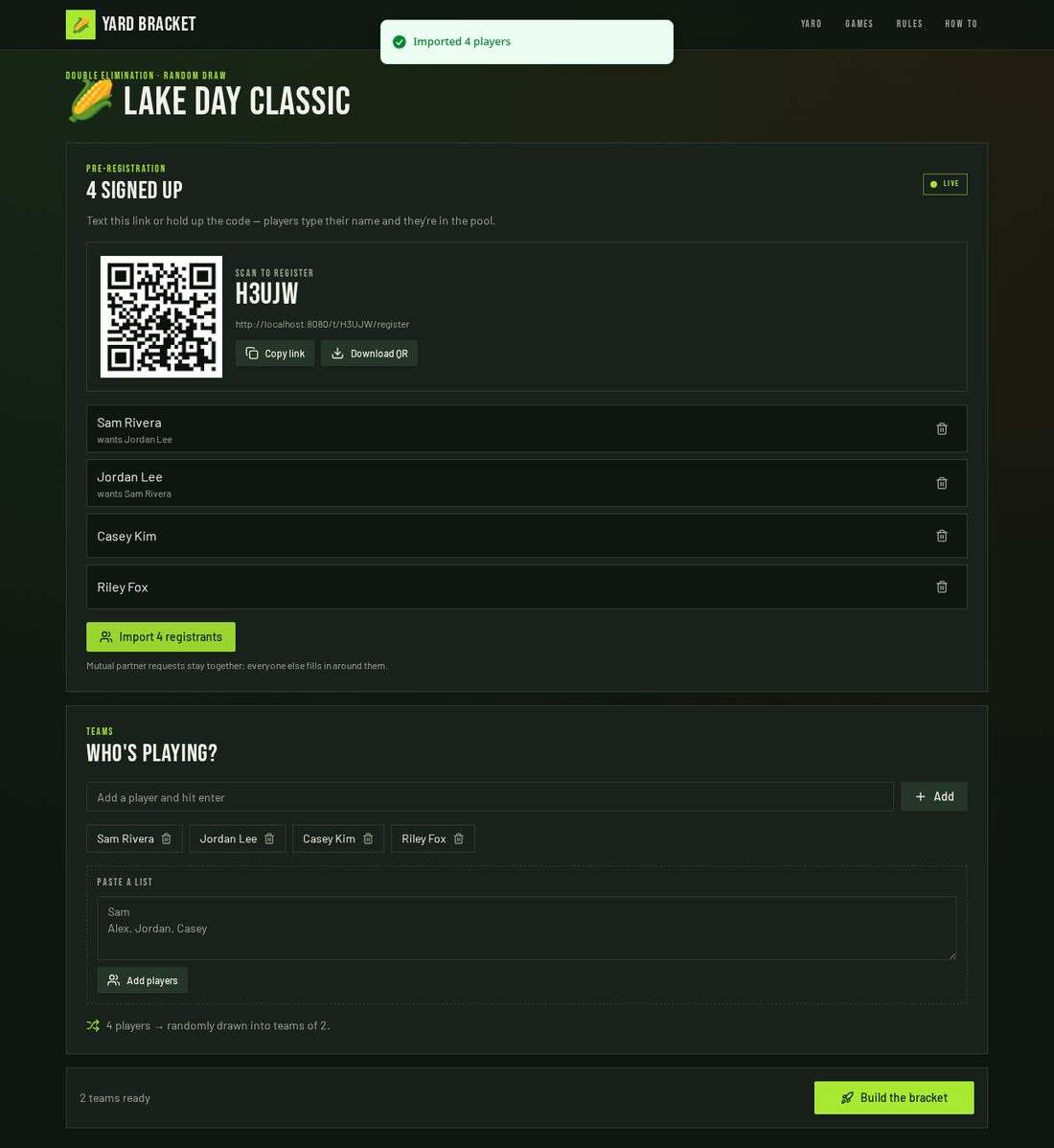
Imported names drop straight into the normal team entry. Step 5
Type names and take sign-ups at the same time
The two ways of adding people are not a choice. Anyone you typed before opening sign-ups stays in the list, and Import registrants adds to that list instead of replacing it — so you can keep typing walk-ups while the QR code is still going round.
The player box keeps focus after every entry, so you can rattle off a whole crowd — name, enter, name, enter — without touching the screen in between.
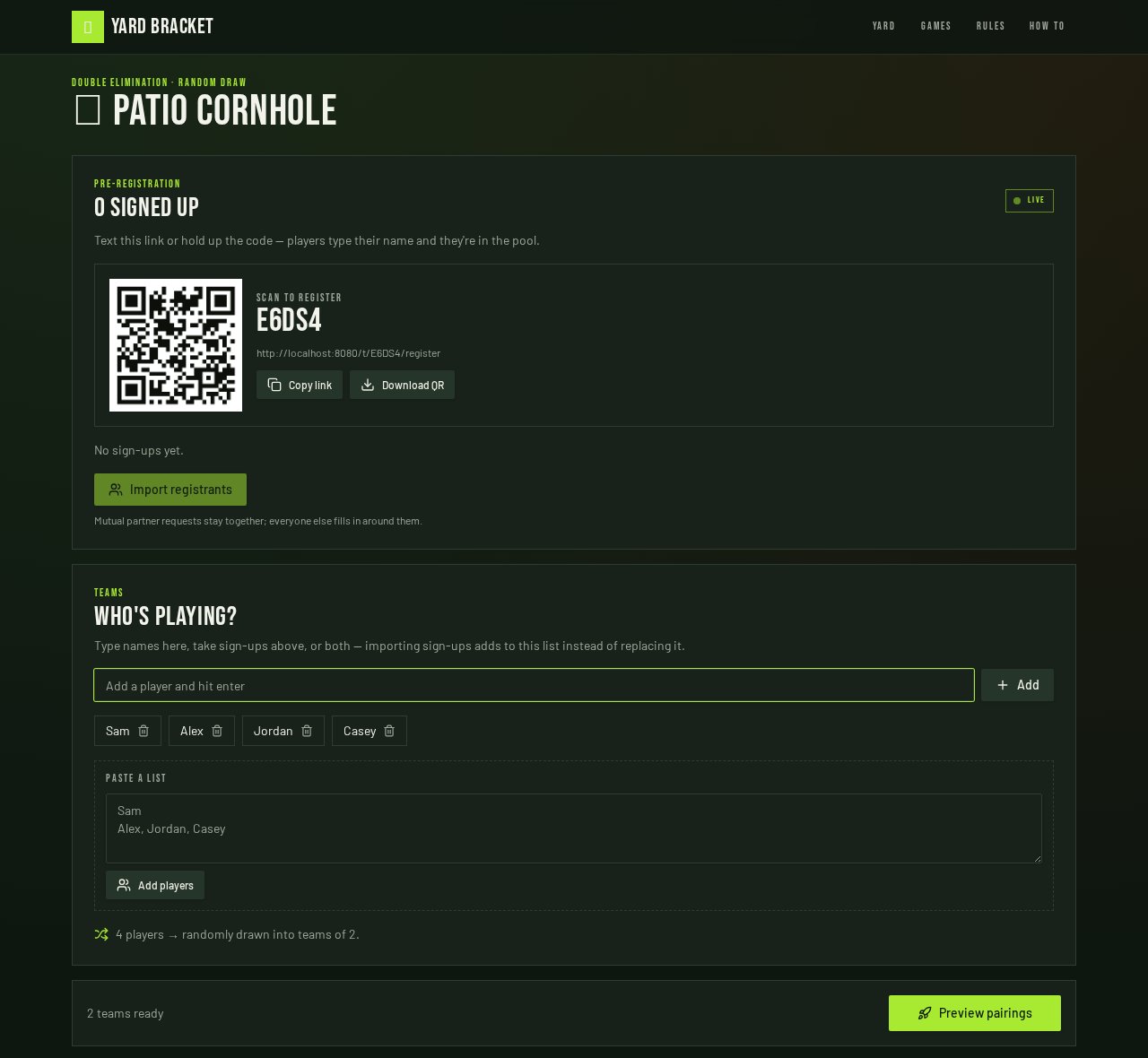
Sign-up link on top, your own typed names underneath — both feed the same bracket.
Running more than one tournament
Cornhole on the patio and golf in the driveway can run side by side. Every tournament you make on this device stays on the home screen.
Step 1
Switch between them from anywhere
Your tournaments on the home page lists them all — newest first, anything live at the front — with the game, team count, share code and status on each card. Tap one to jump straight to its dashboard; swipe the row on a phone.
The same list sits in the header while you're scoring, so you can hop between boards mid-party without going home first. Each tournament keeps its own code, sign-up link and TV display.
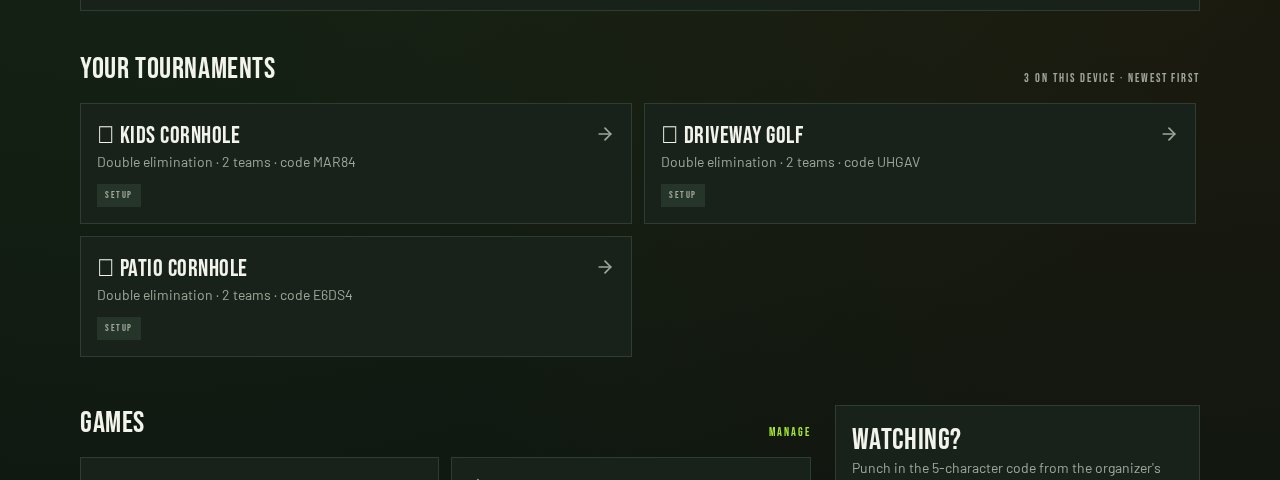
Newest first, with live ones pinned to the front.
Sharing the clipboard: co-organizers
You shouldn't have to hold the phone all afternoon. Hand full control to anyone at the party — still no accounts, no passwords.
Step 1
Open the Organizers panel
Who can run this lists everyone holding the clipboard. Type a name, tap Create invite, and you get a one-time link for that person. You can cancel any invite that hasn't been opened, and remove a co-organizer later — the creator's own access can't be revoked.
In a hurry? Tap Show PIN and read the six digits out loud. They open /t/CODE/join, type it in, and they're an organizer. Showing a new PIN retires the old one, and wrong guesses lock out after ten tries.
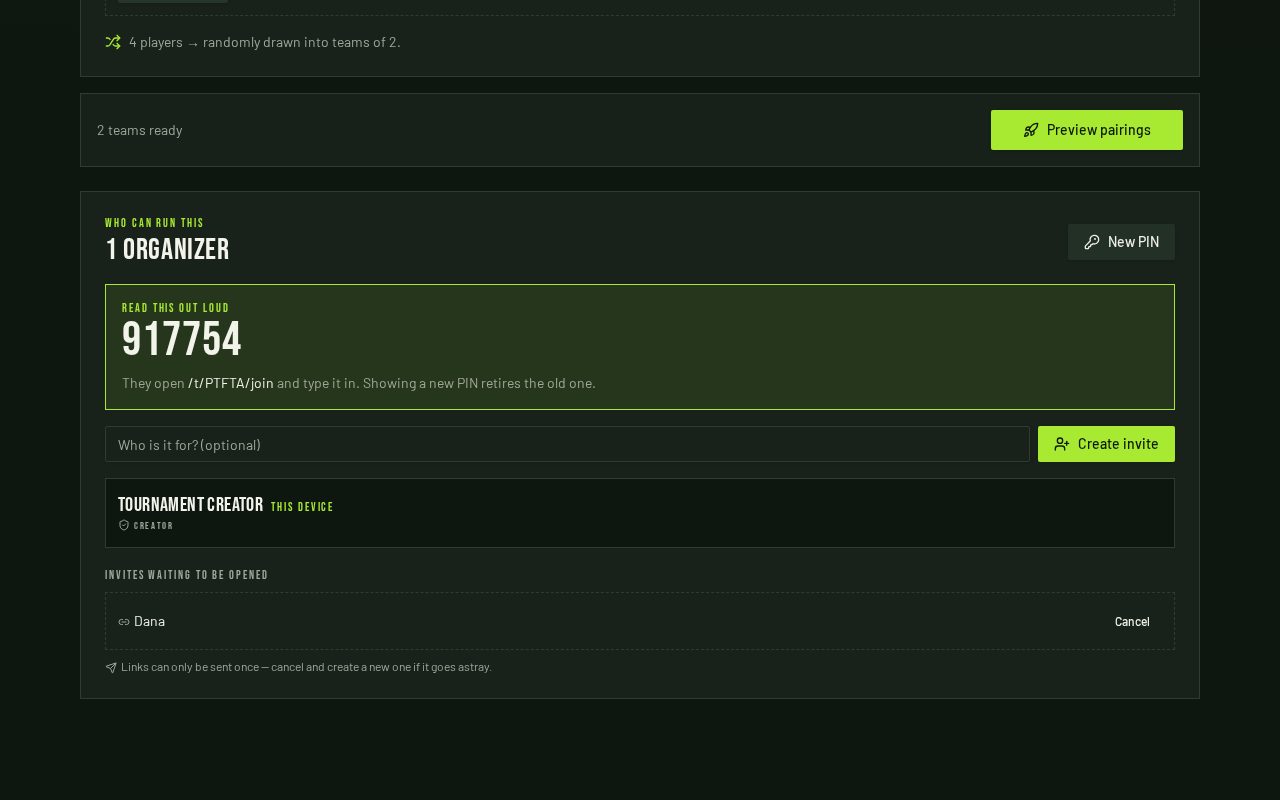
The panel sits under setup, and in an Organizers tab once the bracket is drawn. Step 2
Send it however they'll actually see it
As soon as the invite exists you get a share card: Text it opens a message with the link already written, Share uses your phone's share sheet, Email drafts it, and the QR is there for someone standing next to you.
Anyone already signed up can be promoted straight from the sign-up list — tap the shield next to their name and the invite is pre-addressed to the number they left. Co-organizers get everything you have: score matches, add late teams, draw the bracket, run the TV display.
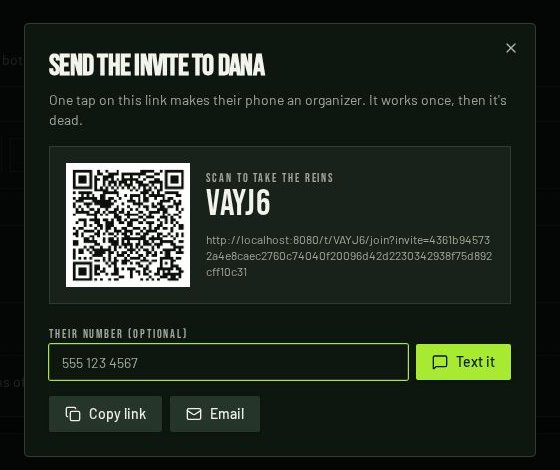
Text, share sheet, email, or hold up the QR — the link works once.
Let the players score their own games
Nobody has to hunt you down between rounds. Whoever just finished can post the score from their own phone using the same share link.
Step 1
Players tap “We played this”
Anyone following the tournament sees a We played this button next to their matchup under Up next. They punch in the score, type their name once (the phone remembers it), and post. The bracket advances instantly on the TV, on your phone and on everyone else's.
Their name shows up on the result in Results — “posted by Ann” — so you always know where a score came from. Organizers can undo or correct any of it, same as always.
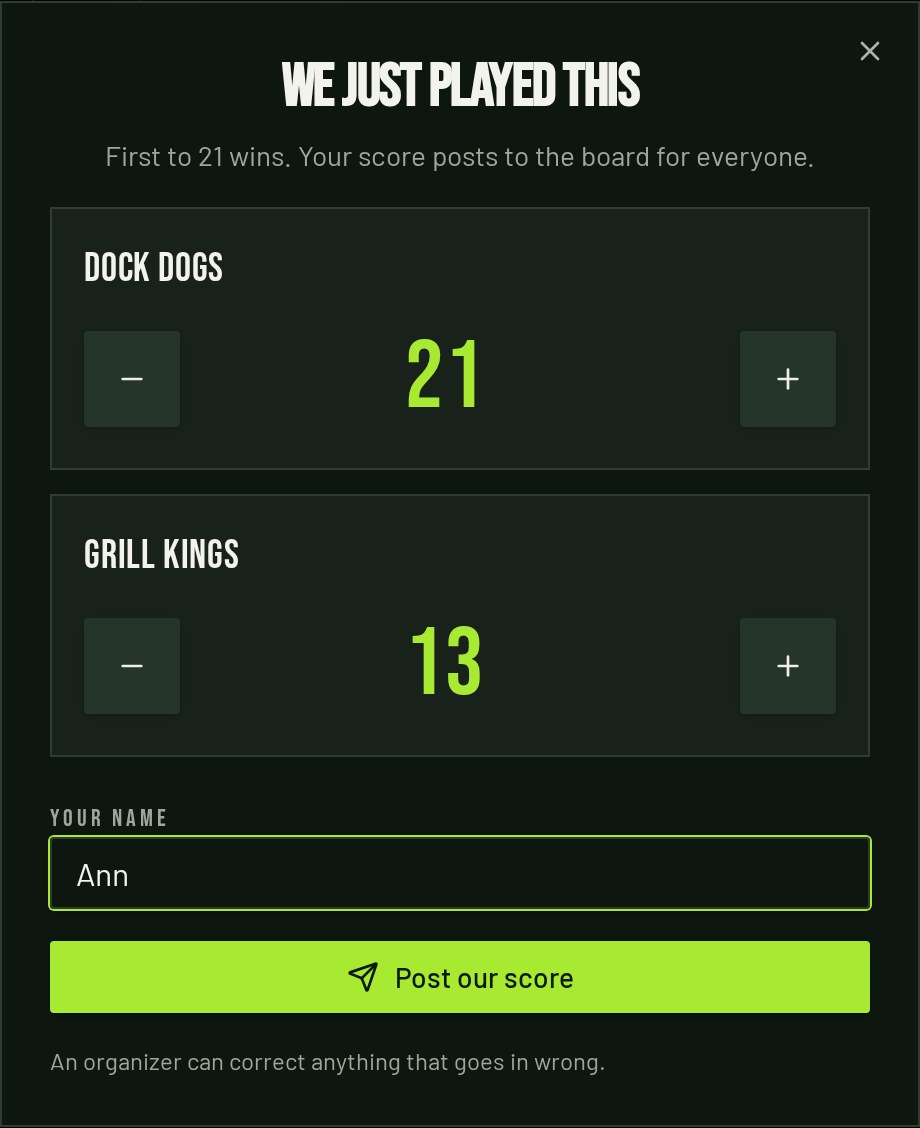
Two big steppers, a name, done — no sign-in, no app to install. Step 2
Turn it off if you'd rather keep the clipboard
On the scoring bar, Player scoring: on toggles it off for the whole tournament. With it off, the button disappears for players and only organizers can report scores.
Either way, only matches that are actually ready can be reported — no scoring a game whose teams haven't been decided, and no overwriting a finished game.
Example: a 12-player cornhole tournament
Twelve people showed up, nobody wants to argue about pairings, and the game is on the patio TV. Here's exactly what that looks like.
Step 1
Pick the game and the format
Tap Start a tournament, choose cornhole, backyard golf or any game you saved, then give it a name like "Labor Day Cornhole".
- Single elimination — Pick this when you want it done fast — one loss and you're out.
- Double elimination — Pick this when everyone should get a second life in the losers bracket.
- Round robin — Pick this for small groups who want to play everybody.
- Pool play → bracket — Pick this for big yards: pools first, top finishers move to a bracket.
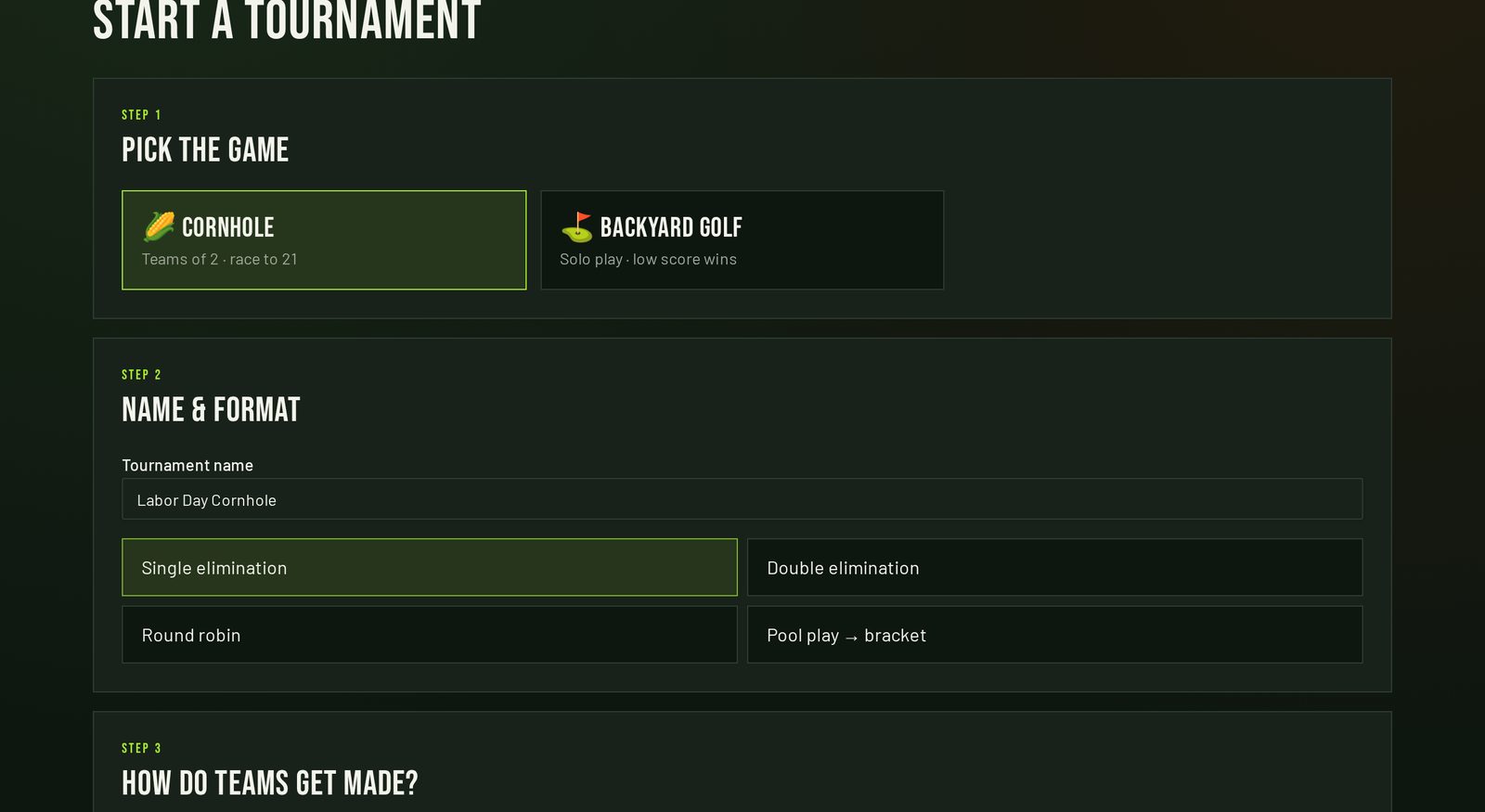
Step 1 and 2 of the setup wizard: cornhole, named, single elimination. Step 2
Enter everybody at once
Paste your list into Paste a list and hit Add players, or type names one at a time. Tap the trash icon on a chip to remove someone.
Leave Random draw on to let the app pair people up, or switch to Robinson Rules and build each team by hand. Then press Preview pairings.
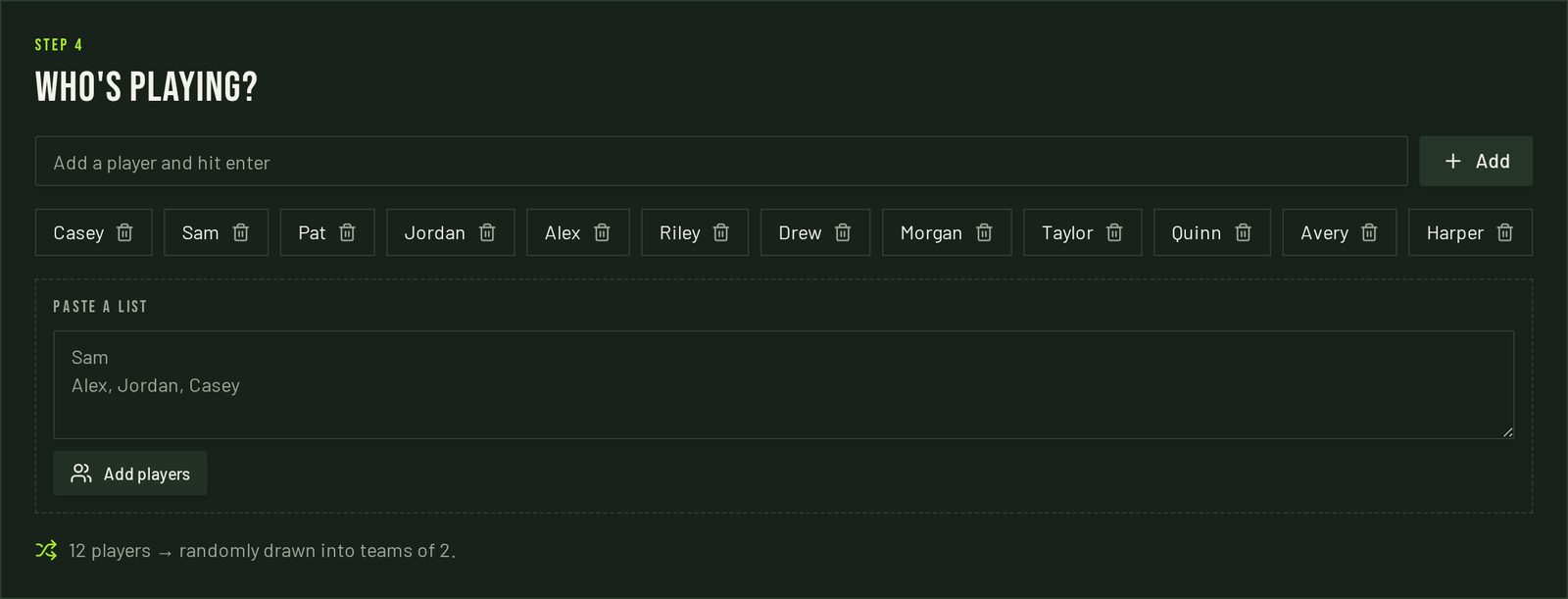
Paste the whole list — commas or one name per line both work. Step 3
Check the pairings before you commit
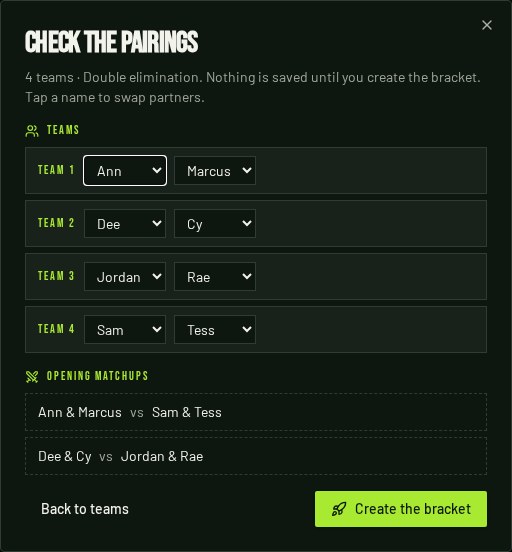
Preview pairings shows every team you're about to lock in — Robinson Rules pairings exactly as you arranged them — plus the opening matchups they produce.
Not right? Back to teams returns you to the list with nothing saved. On a random draw you also get Re-draw to roll the pairings again. When it looks good, press Create the bracket.
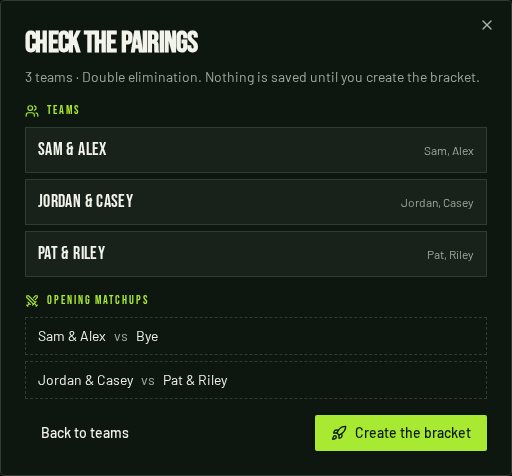
Nothing is saved until you press Create the bracket. Step 4
Run the games from Up next
The tournament page is your control panel. Up next lists the games that can be played right now; Bracket shows the whole draw; Teams is where you add or withdraw people.
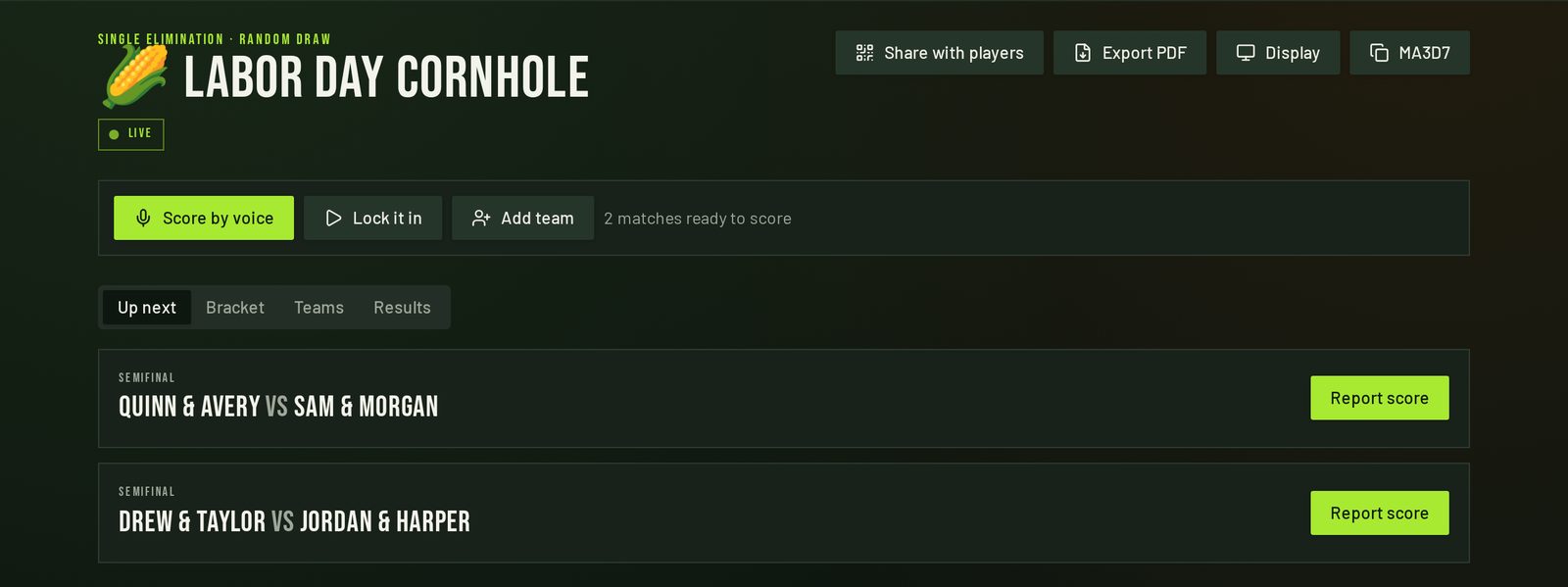
Up next only shows matches that are ready to play right now. Step 5
Report the score — tap or talk
Tap the plus and minus buttons, or press Say the score and speak it out loud: "Taylor and Pat twenty one, Drew and Avery thirteen". Confirm and the winner moves on automatically.
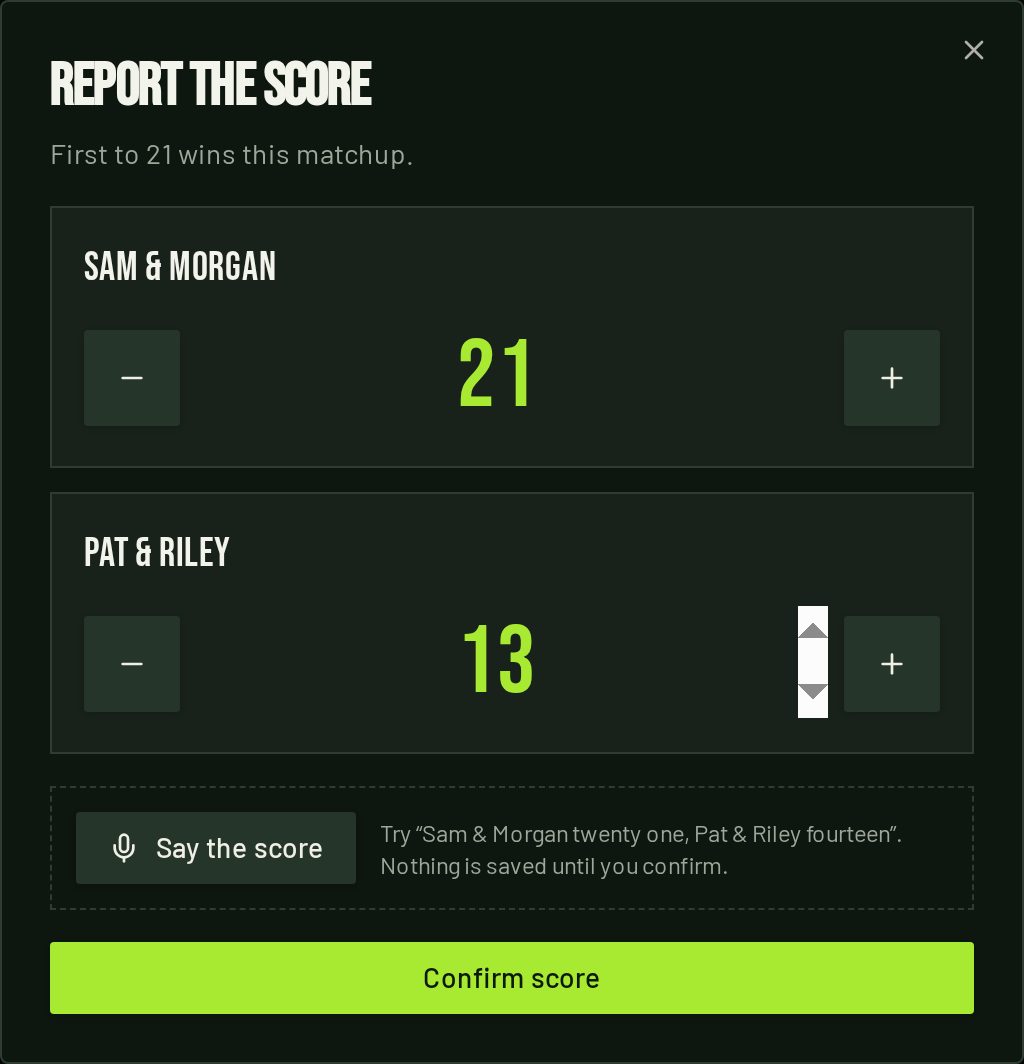
Nothing saves until you press Confirm score. Step 6
Watch the bracket fill in
Byes are handled for you, so an odd number of teams is fine. Tap any match in the bracket to score it directly.
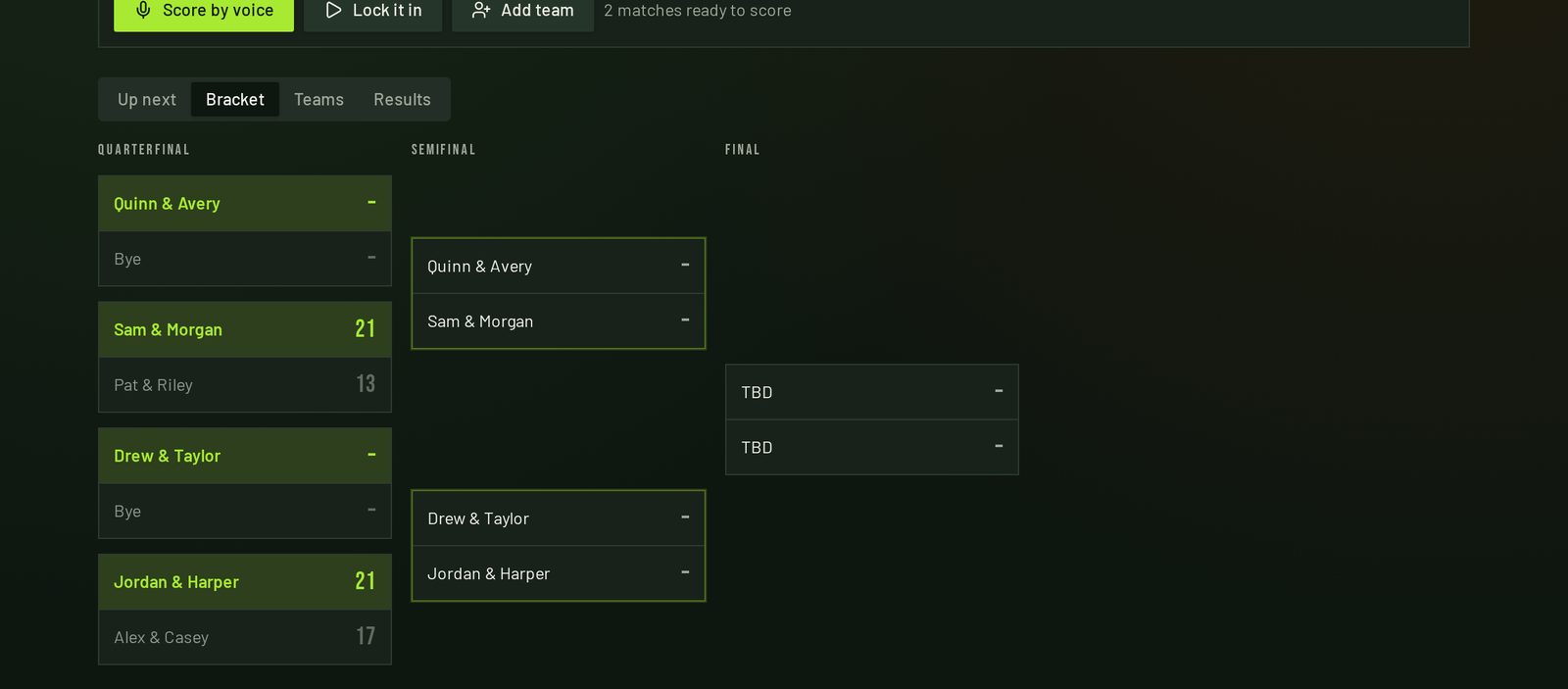
Winners advance the moment a score is confirmed. Step 7
Fix a wrong score
Open Results and press Undo on the last score in that round. The bracket recalculates everything downstream. Corrected scores stay in the log, marked as corrected.
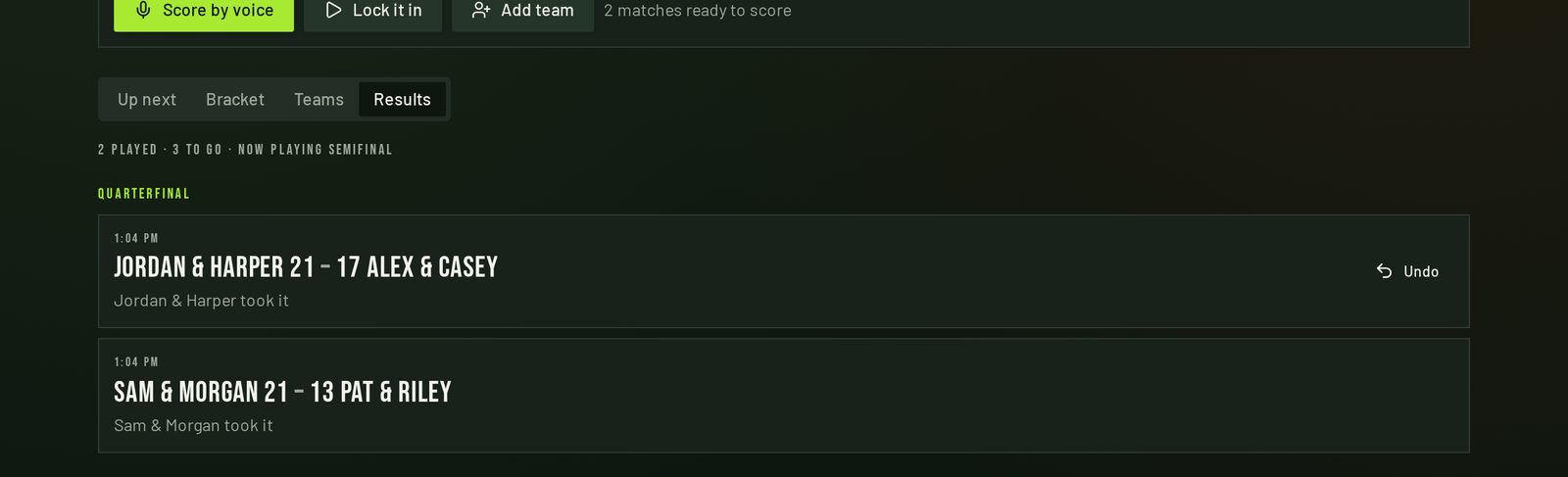
The Results tab doubles as the score log for everyone watching. Step 8
Somebody showed up late
Go to Teams and press Add team. The app slots the newcomers into an open bye, a play-in match or the next round of fixtures depending on your format, and tells you where they landed. Withdraw pulls a team out the same way if someone has to leave.
Step 9
Share it and save it
Share with players puts a QR code on screen — anyone who scans it follows the bracket live, no sign-in. Export PDF saves the standings, bracket and full results log when it's over.
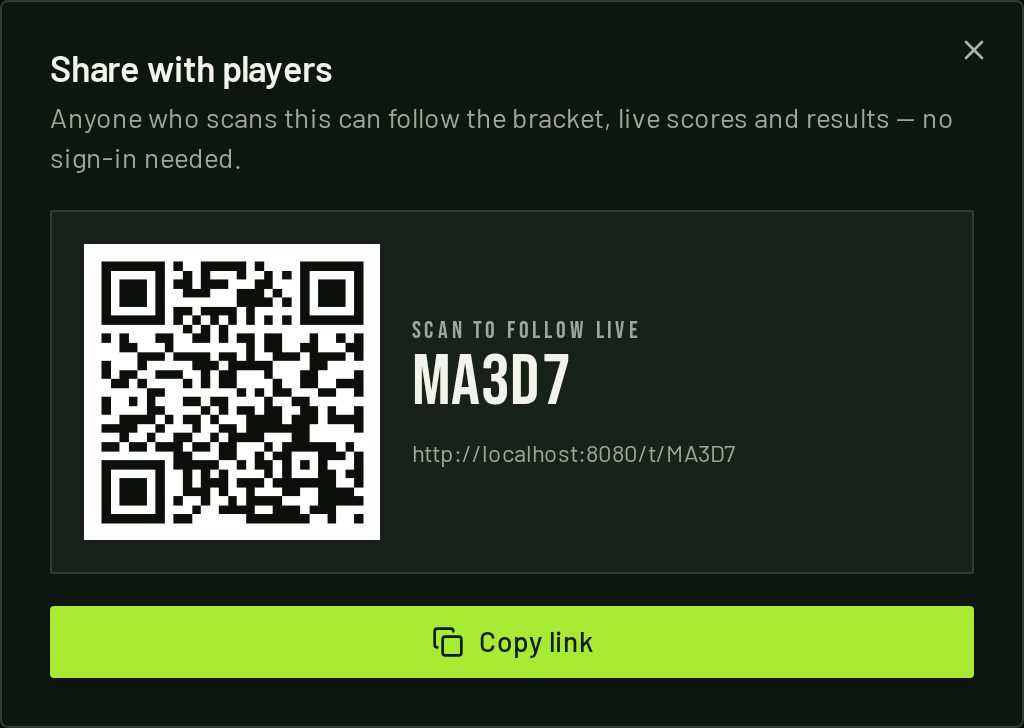
Everyone scans once and follows the whole tournament on their own phone.
See everyone who's playing
The tournament page opens with a Who's playing card: a headline count, every team with both players, and anyone who signed up but isn't on a team yet. Players, spectators and organizers all see it, so nobody has to ask whether their name made it in. On a phone it starts collapsed — tap Show all to open the full list. Before the bracket is drawn, the big-screen display shows the same list so the crowd can check the sign-up sheet from across the yard.
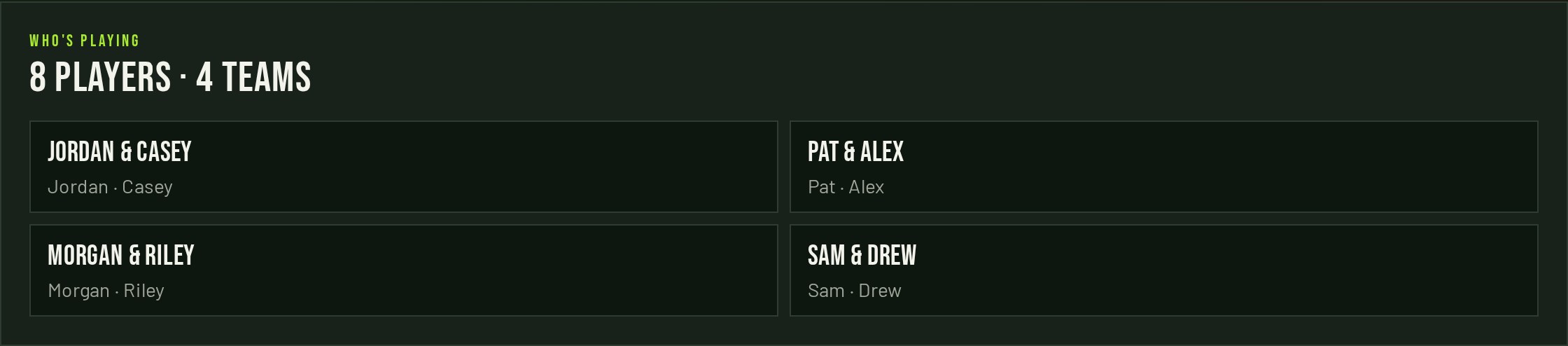
Names first, teams later
Everyone you type goes into a plain player pool — no half-finished teams while people are still arriving. Each name saves to the cloud a moment after you type it (watch for Saved to the cloud), so refreshing the page, swapping phones or handing the tablet to a co-organizer never loses the list. Sign-ups from the registration link land in the same pool. When everyone's here, press Start the tournament and only then does the app make teams.
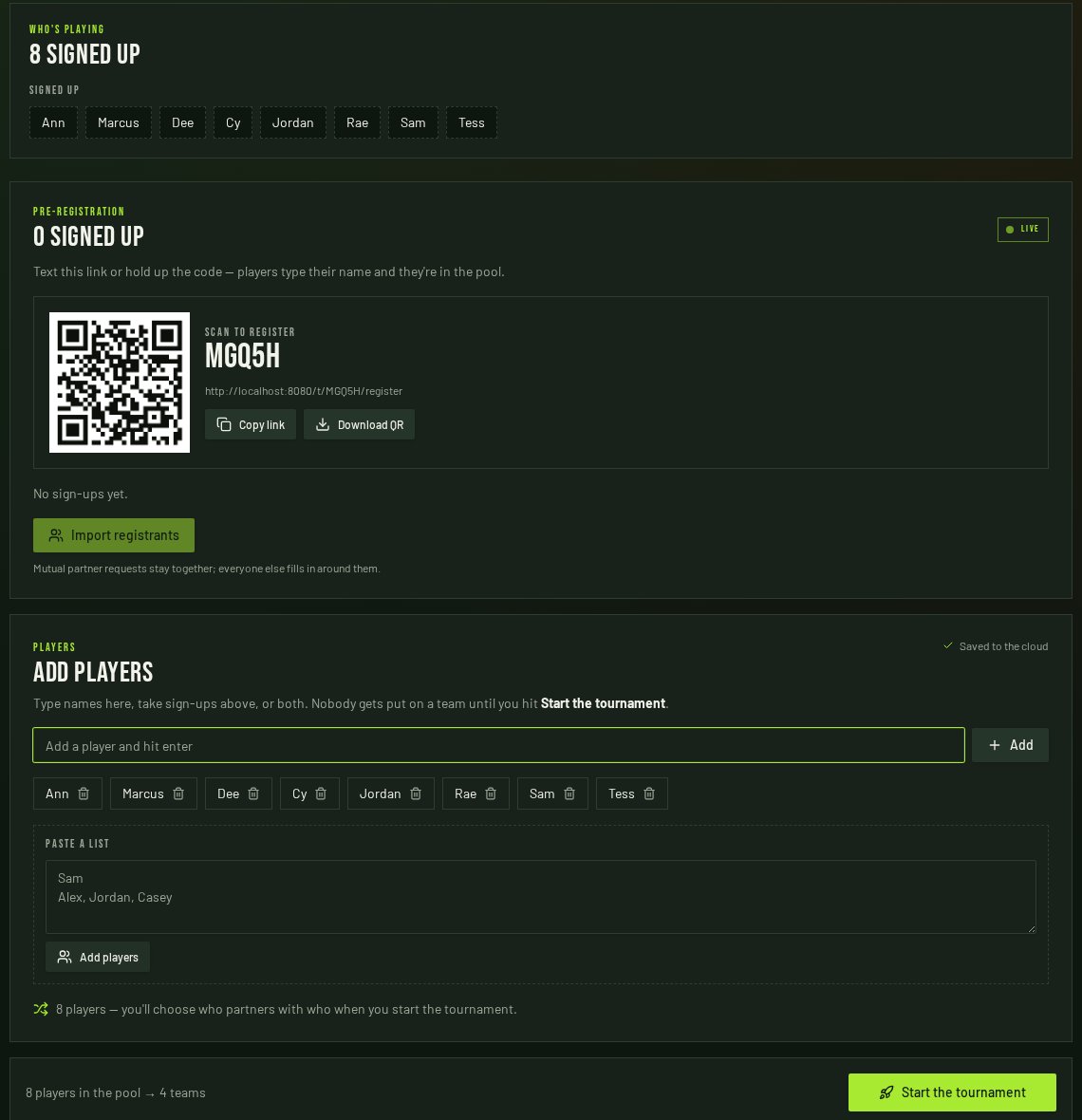
On a Robinson Rules tournament, the start screen is where you choose partners: every team shows two dropdowns, and picking a name swaps that player with whoever was there. Random draws get a Re-draw button instead. Nothing is saved until you press Create the bracket.
Organizers show up by name too. Type your name when you start a tournament (or when you join with a PIN) and the Organizers panel lists who's running things, when they joined, and a pencil to rename anyone.
Put it on a TV, iPad or phone
Every screen shows the same board and updates in real time — look for the Live badge. If a device drops offline it catches itself up as soon as it reconnects.
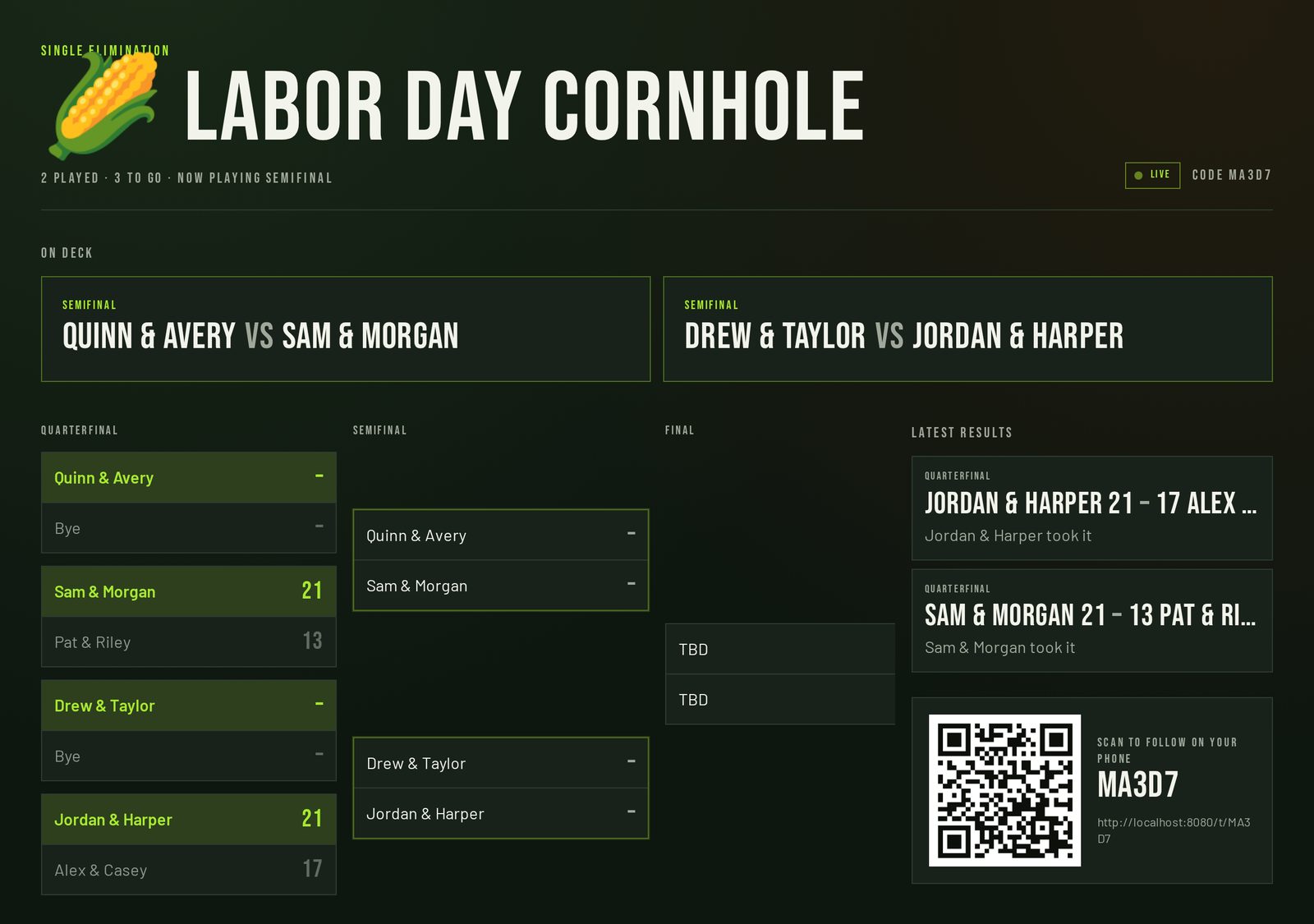
TV or monitor
- Open the tournament and press Display.
- Cast that browser tab to the TV, or plug a laptop into the HDMI port.
- Press F11 (or use full screen) so only the board shows.
- Leave it — scores appear as they're confirmed, no refresh needed.
iPad
- Open the share link in Safari and press Display.
- Share → Add to Home Screen for a full-screen scoreboard.
- Set Settings → Display & Brightness → Auto-Lock to Never so it stays awake.
- Prop it on the table next to the boards.
iPhone or Android
- Scan the organizer's QR code, or type the 5-character code on the home page.
- Follow Up next, Bracket and Results as they happen.
- Only the organizer's device can change scores — everyone else is read-only.
- Tap Export PDF at the end to keep the results.
Troubleshooting
The mic button does nothing.
Voice scoring needs Safari or Chrome and permission to use the microphone. If the browser blocked it, allow the mic in site settings and reload — you can always tap the plus and minus buttons instead.
The TV keeps going to sleep.
Turn off screen sleep on the device driving the display — Auto-Lock on an iPad, sleep settings on a laptop. The display page itself never times out.
Who can change scores?
Only the device that created the tournament. Everyone else who opens the code sees the same board, live, but can't edit it.
What is the 5-character code for?
It's the tournament's address. Anyone can type it on the home page to follow along, and it's what the QR code links to.
Where do custom games live?
Save one on the Games page and it shows up alongside cornhole and backyard golf every time you start a tournament.
Someone signed up twice.
They can't — sign-ups are matched by name, so a repeat submission just says "already registered". If two different people share a first name, ask one to add a last initial.
A player says the sign-up link is closed.
Sign-ups close the moment you build the bracket. They'll see a link to follow along live instead — add them with Add team on the Teams tab.
More people signed up after I imported.
The Sign-ups tab flags the new names. Import again before you build the bracket, or use Add team once it's running.